Introduction
If you’re starting out in graphic design or digital art, you’ve probably heard of Adobe Photoshop and Illustrator. They’re two of the most powerful tools in the Adobe Creative Cloud suite, and while they may look similar at first glance, they are built for very different purposes. Understanding when to use each program can save you time, improve your workflow, and lead to better design outcomes.
Photoshop and Illustrator are both essential tools for creative professionals—but knowing which tool to use and when is just as important as knowing how to use them.
What Is Adobe Photoshop?
It was originally designed for photo editing and manipulation, and it remains the go-to tool for photographers, digital artists, and anyone working with detailed images.
Photoshop lets you adjust brightness and contrast, apply filters, retouch photos, create digital paintings, and work with hundreds of image-editing tools. It supports multiple layers, masks, brushes, and powerful selection tools.
Because it deals with raster images, Photoshop is ideal for working on projects where detail and pixel-level control are essential—like photo retouching, digital painting, and image composition.
What Is Adobe Illustrator?
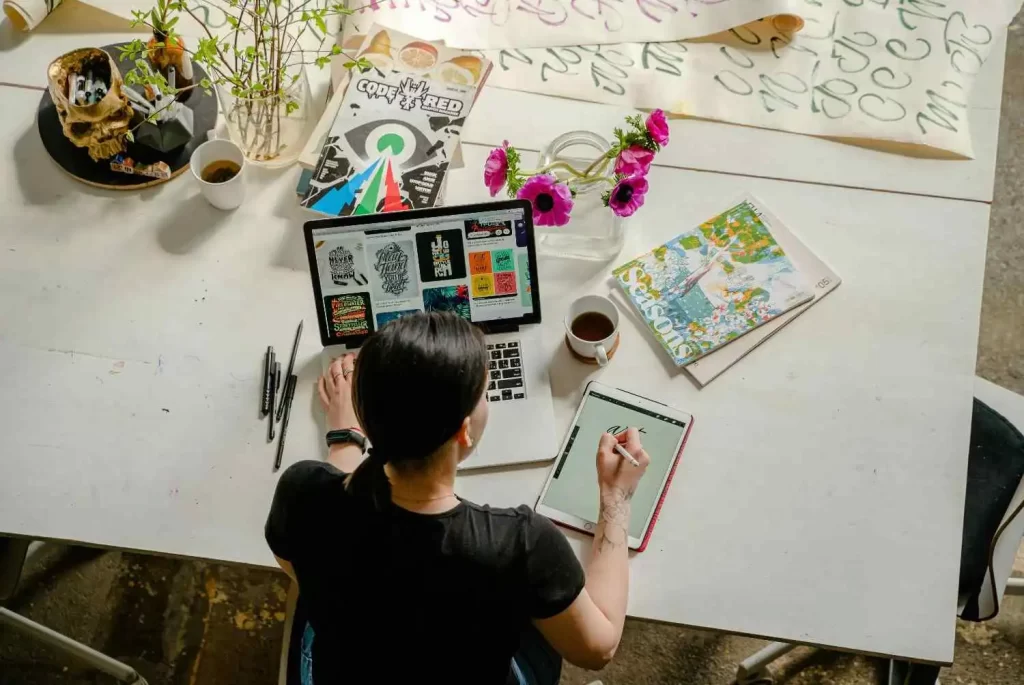
This means that artwork made in Illustrator can be resized infinitely without losing any quality, making it the preferred tool for creating logos, icons, typography, and scalable illustrations.
Illustrator excels at producing clean, sharp graphics that are ideal for print, packaging, branding, and illustrations that need to maintain their integrity at any size. The precision of paths and anchor points allows designers to create everything from complex illustrations to simple geometric shapes with ease.
You wouldn’t use it for photo manipulation, but it’s perfect for graphic work that demands scalability and sharp lines.
When to Use Photoshop.
You should use Photoshop when working with photographs, digital artwork that mimics traditional painting, or any project where pixel-level precision matters.
Here are some examples of when Photoshop is the right tool:
- Photo retouching and editing (skin smoothing, blemish removal, colour correction)
- Digital painting and concept art
- Web graphics and social media posts
- Image manipulation and composites
- Mockups and UI design prototypes
- Animation frame editing or GIF creation
Because Photoshop allows for detailed colour manipulation and supports complex image layering, it is the industry standard for photographers and visual artists.
However, if you need to create a logo or a graphic that must be used in multiple sizes (like both a business card and a billboard), Photoshop may not be the best choice.
When to Use Illustrator.
Illustrator is the clear winner when it comes to designing clean, scalable graphics. If you’re creating a logo, a brand identity system, or detailed vector illustrations, It should be your first choice.
Use Illustrator when working on:
- Logos and branding assets
- Icons and app interfaces
- Posters, flyers, and brochures
- Info graphics and diagrams
- Custom typography and lettering
- Packaging and print designs
- Vector illustrations or line art
Because vector graphics don’t lose quality when scaled, they’re perfect for branding. Imagine designing a logo that will be used on everything from a pen to a billboard—you need that graphic to remain sharp at all sizes. Illustrator handles that effortlessly.
Combining Photoshop and Illustrator.
Often, designers use both tools together. For example, you might create a logo in Illustrator and then import it into Photoshop to add texture or place it into a realistic mockup. Or you might design a background in Photoshop and layer vector graphics on top using Illustrator.
Adobe’s Creative Cloud allows for seamless integration between its apps, making it easy to transfer files between Photoshop and Illustrator.
This hybrid approach is especially useful in advanced design projects, where you may need both raster texture and vector precision in one final piece.
Conclusion
Both are powerful design tools, but they serve different purposes. Understanding the strengths of each program will help you choose the right one based on your project goals. By using each tool for its intended purpose—or combining them effectively—you can elevate the quality and professionalism of your design work.
Also Check
-
Top 10 FREE AI Tools Every Student Should Learn in 2026
-
Why You Don't Get a Job Even after Having a Degree Understand the real reason
-
Best AI Courses for Commerce Students | Future-Ready Skills 2026
-
Why are salaries doubling for those learning AI? | Future Jobs & High-Income Skills 2026
-
What Jobs Can You Get by Learning AI? (2026 Guide) | High-Demand Careers Explained